Generate your first pdf document from Monday.com
Video Tutorial
The contents of this tutorial are available as YouTube video as well. If you prefer, you can watch it here
Pre-requisites
- A FlexiPage account
- A connected monday account
Board Setup
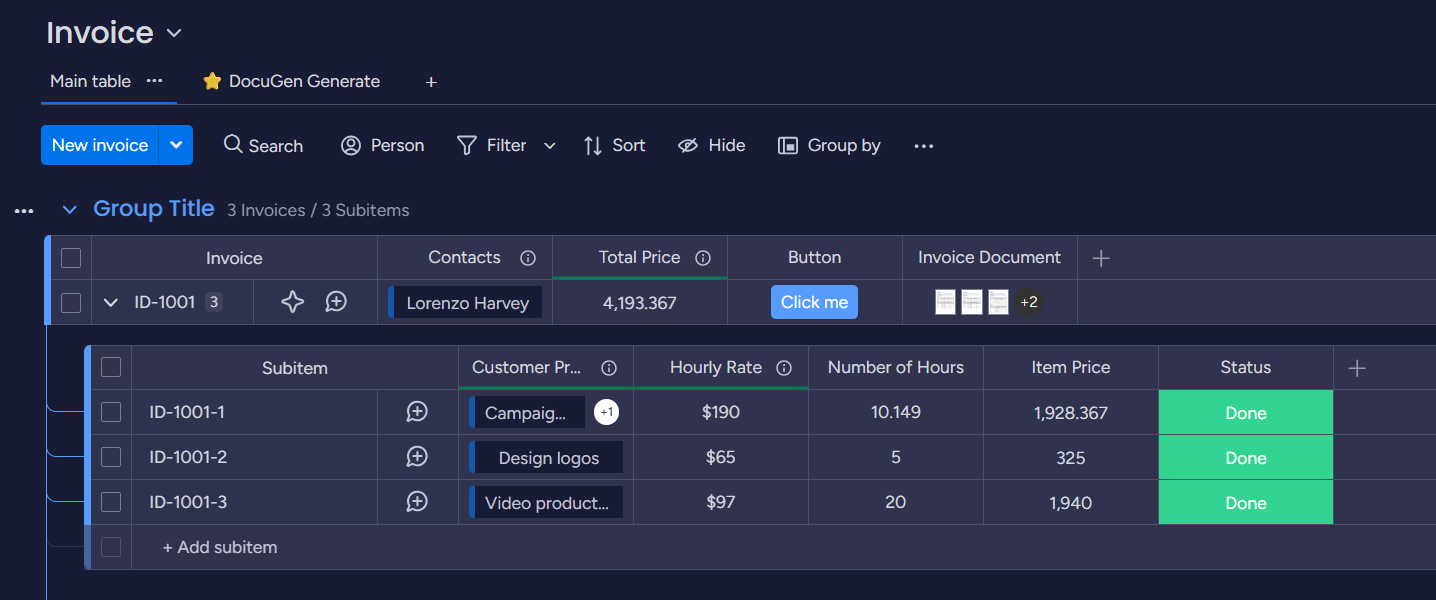
We will use the following Invoice board to create our first document. The Invoice board, connects to a single client using Connect Board column. And it has multiple projects for billing, which are listed in subitems.
Create Document Template
Visit FlexiPage
- Click on Create Document button
- Select Monday as the platform
- Select Invoice board and click on Create
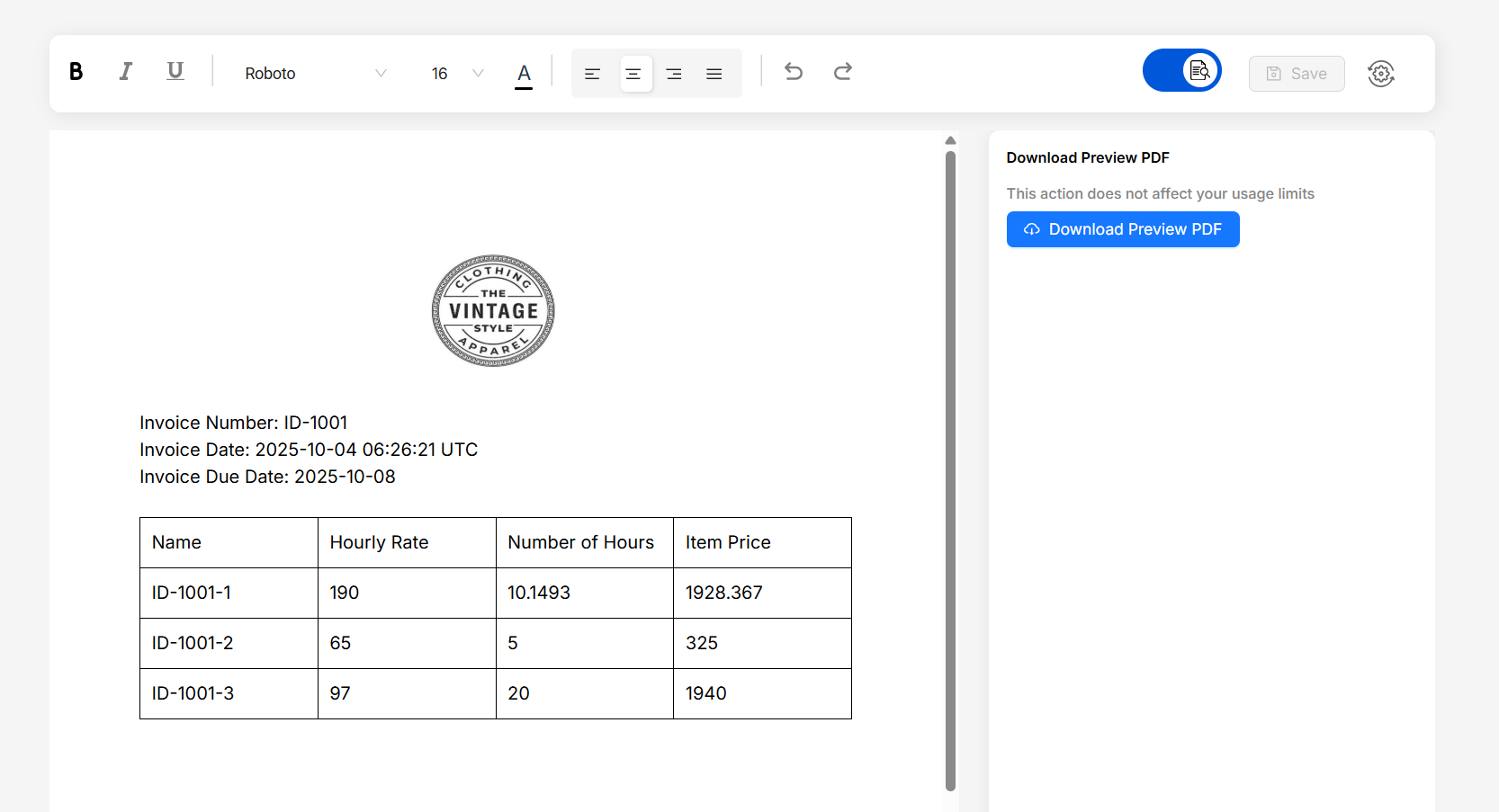
While creating document templates, toggle the preview toggle in toolbar to see a preview of your document with monday data. Preview always comes from the first item
Logo
First let's add brand logo
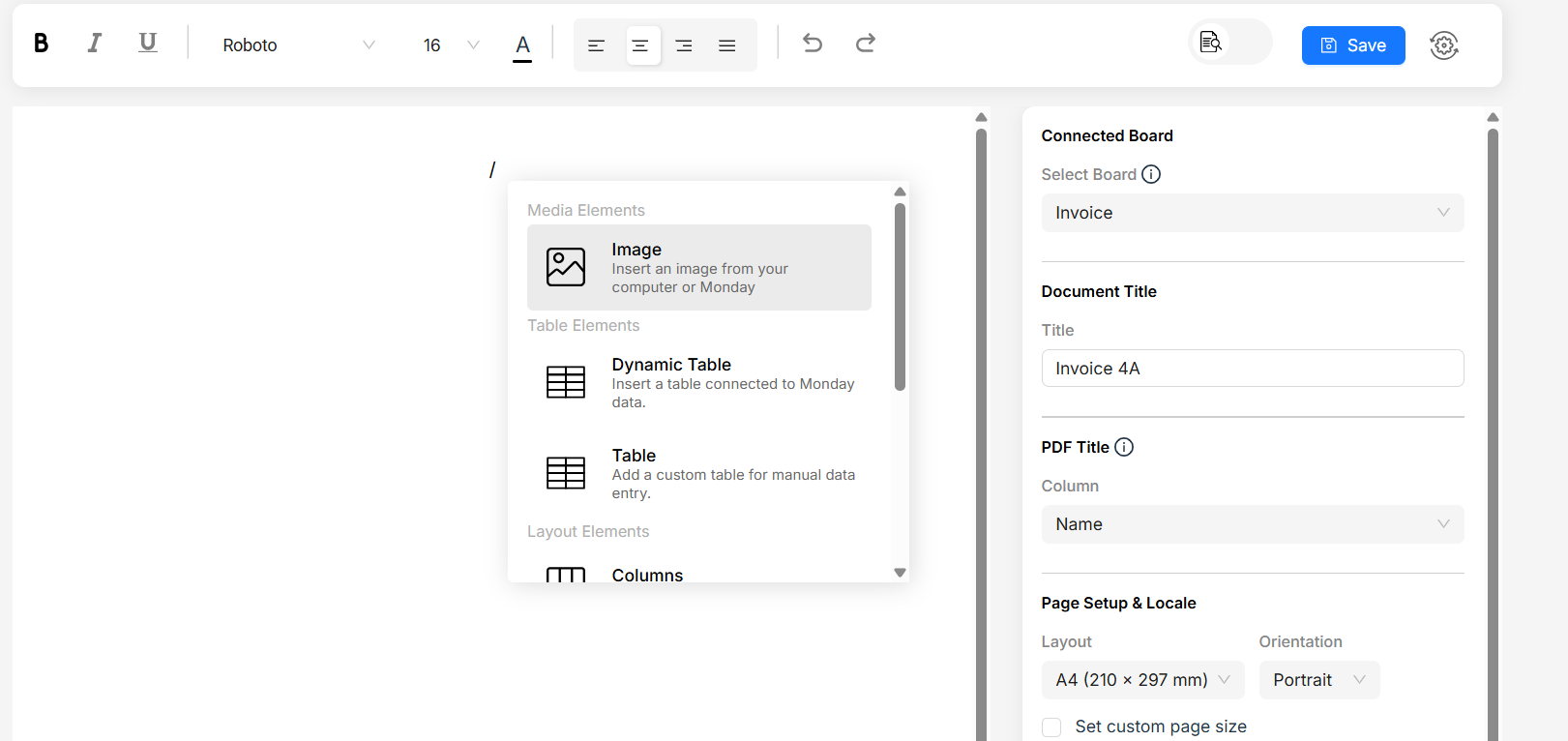
- Select Image component from library by typing
/in the editor. - If you have static logo, hover over image and select upload button and add your image.
- For dynamic logo (client's logo), select the image placeholder with left mouse click. On the right panel you will see a dropdown for field selection. Select the File column and set attachment position as 0 for first image in the field.

Invoice number, dates, Billing
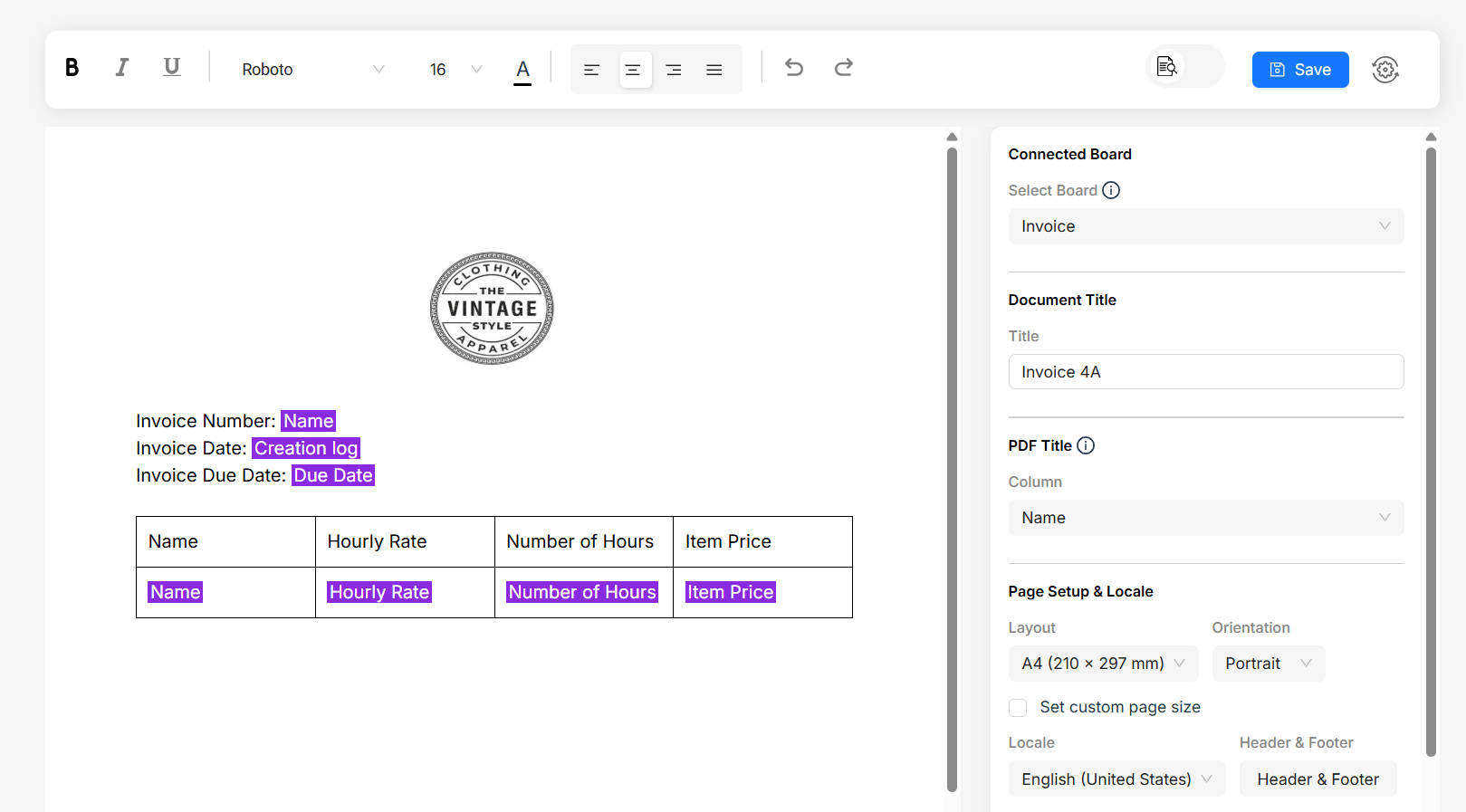
For Invoice Number, Date and Due date we have corresponding columns in our Invoice board. You can Just type
Invoice Number : followed by @. Once you type @ you'll see a drop-down of all the columns in the board. Type
for the field name and select the Name field.
In similar way you can create the Bill To and Billing Contact sections. Type out the heading and then use @ to select the
columns
If you want Bill To and Billing Contact to be side by side, you can use our column component.

Line Items table
Let's quickly create a table from subitems which lists project specific costs.
- Type
/in the editor and select Dynamic Table Component. - In the dialog that appears, select
subitemsfield and choose which columns from subitems board you want to display in table - Click create table
You can control table styles (Borders, colors, alignment) from the right side properties panel. Just select any part of the table and you'll see style properties for table
You can control the sorting order, filter out line items based on condition, hide column on condition etc... Learn more about dynamic table here - Line Items Guide
Preview the template
Merge with a single item
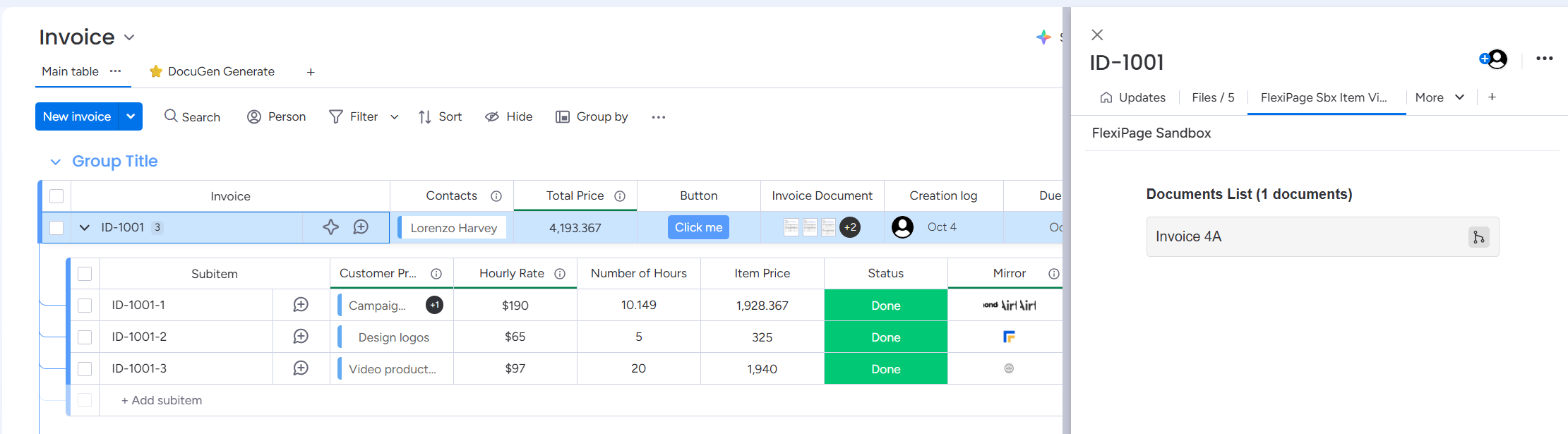
Click on the required item to open the detail page. Check whether FlexiPage item view is installed. If not, add it by following the steps:
- Click on "Add View" plus button
- Click on "Explore more views"
- Search for "FlexiPage" and install the item view.
Once the item view gets installed, you should see the document templates created for that board inside it. Click on the merge icon, to download the pdf document.
Automate
Now that you've created your document template and tested it manually, you can set up automation to generate documents automatically based on triggers in your Monday.com board.
FlexiPage provides integration recipes that allow you to:
- Generate documents when a button is clicked
- Generate documents when an item's status changes
For detailed instructions on setting up automation, see our Integration Recipes Guide.