Auto Numbering
The Counter adds a number that increases on its own every time it appears. Use it to number clauses, items, or repeated blocks without typing the numbers yourself. It is especially handy inside a Looper or DynamicTable, where it numbers each repeated item for you.
Add a counter
- Type
/in the editor and choose Counter. A number placeholder appears inline. - Select the counter and open the Properties panel on the right to adjust how it looks.
The editor shows a placeholder shape. The real number is calculated when the document is generated, so a counter placed inside a Looper becomes 1, 2, 3, and so on across the repeated records.
Options
In the Properties panel you can set:
- Level: choose Top-level (1, 2, 3), Sub-item (a, b, c), or Sub-sub-item (i, ii, iii). Different levels let you build nested numbering.
- Format: pick the style, such as
1, 2, 3,01, 02, 03,a, b, c,A, B, C,i, ii, iii, orI, II, III. - Show parent prefix: for a sub-level, include the parent number too, so you get
1.ainstead of justa. - Start fresh from here: on a top-level counter, restart the numbering from this point.
- Start at: set the first number. The default is 1.
Nested numbering
Counters work best inside nested Loopers. Give the outer items a Top-level counter and the inner items a Sub-item counter to produce numbering like 1, then 1.a, 1.b, then 2, and so on.
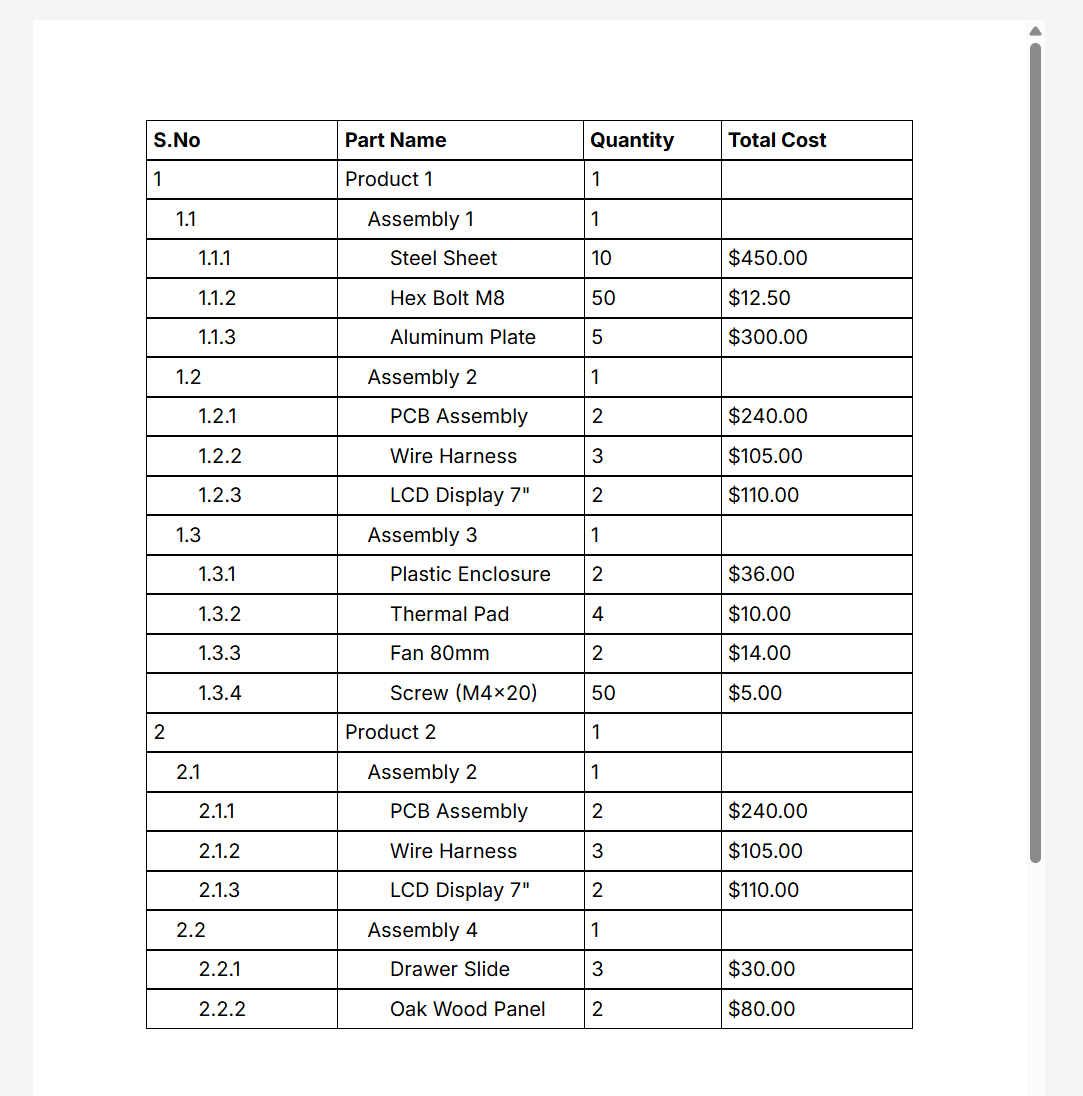
The example below is a Bill of Materials report built with a 3-level nested Looper, where each level is numbered by its own counter.
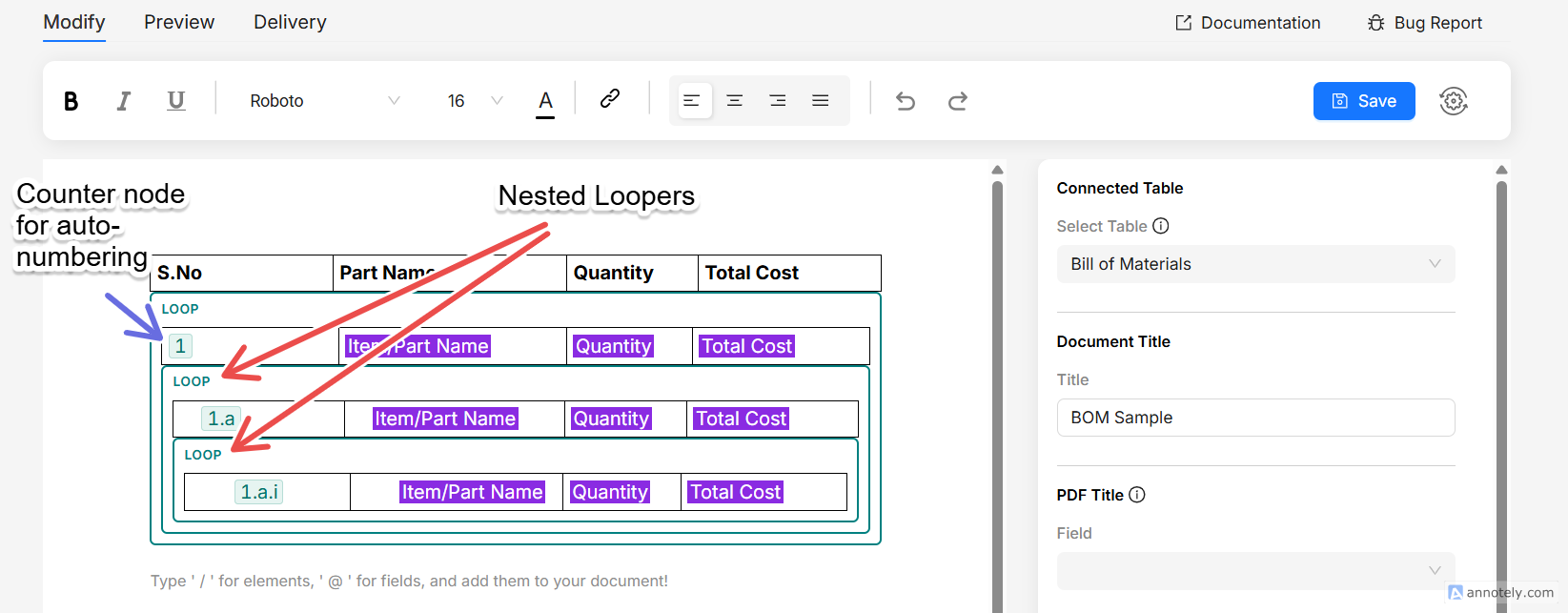
And it's preview in the editor is shown below. Note that for nested levels, indentation is different and auto numbering with counter is also shown in nested form.