Conditional Content
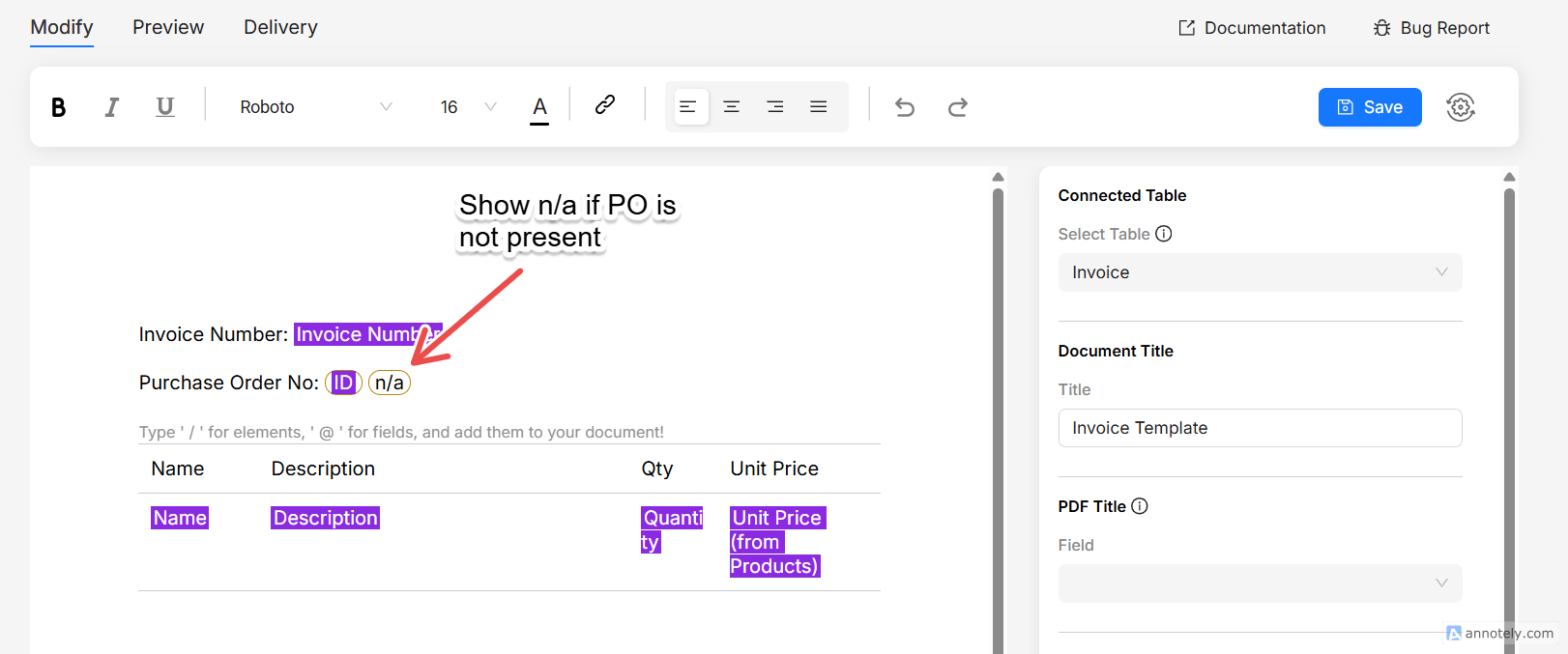
You can create different versions of a document based on the values in Airtable record. A simple example would be, you might want to show a field value only if it is not empty. If it's empty, you might want to show "N/A". You can also hide/show entire sections based on certain conditions. Let's create a conditional setup for the same example.
FlexiPage gives you a few ways to do this, depending on how much content you want to gate:
- Inline conditional text – a few words inside a sentence.
- Conditional sections – show/hide a whole block of content: paragraphs, tables, images.
- Conditional table columns – specifically hide a table column based on a condition. Example, hide a "Discount" column when no discount applies.
- Loop conditions – conditions based on the iteration index of a Looper. Useful for alternate table row colors, switching ltr to rtl sections, etc...
Inline conditional text
Use inline conditional text when you want to show/hide a short run of text inside a line (a word, a phrase, or a trailing note) while the surrounding text keeps flowing.
A good example is the word (overdue) that should appear right after an invoice date, but only when the invoice is past due.
- Type
/in the editor and choose Inline Conditional Text. An inlineadd textplaceholder appears. - The placeholder is ready to edit, so just type to replace
add textwith your own words. - Click the text to open the Set Condition dialog and define when it should appear.
When the condition is met, the text is included in the document. Otherwise it is left out and the rest of the line closes up around it.
Conditional sections
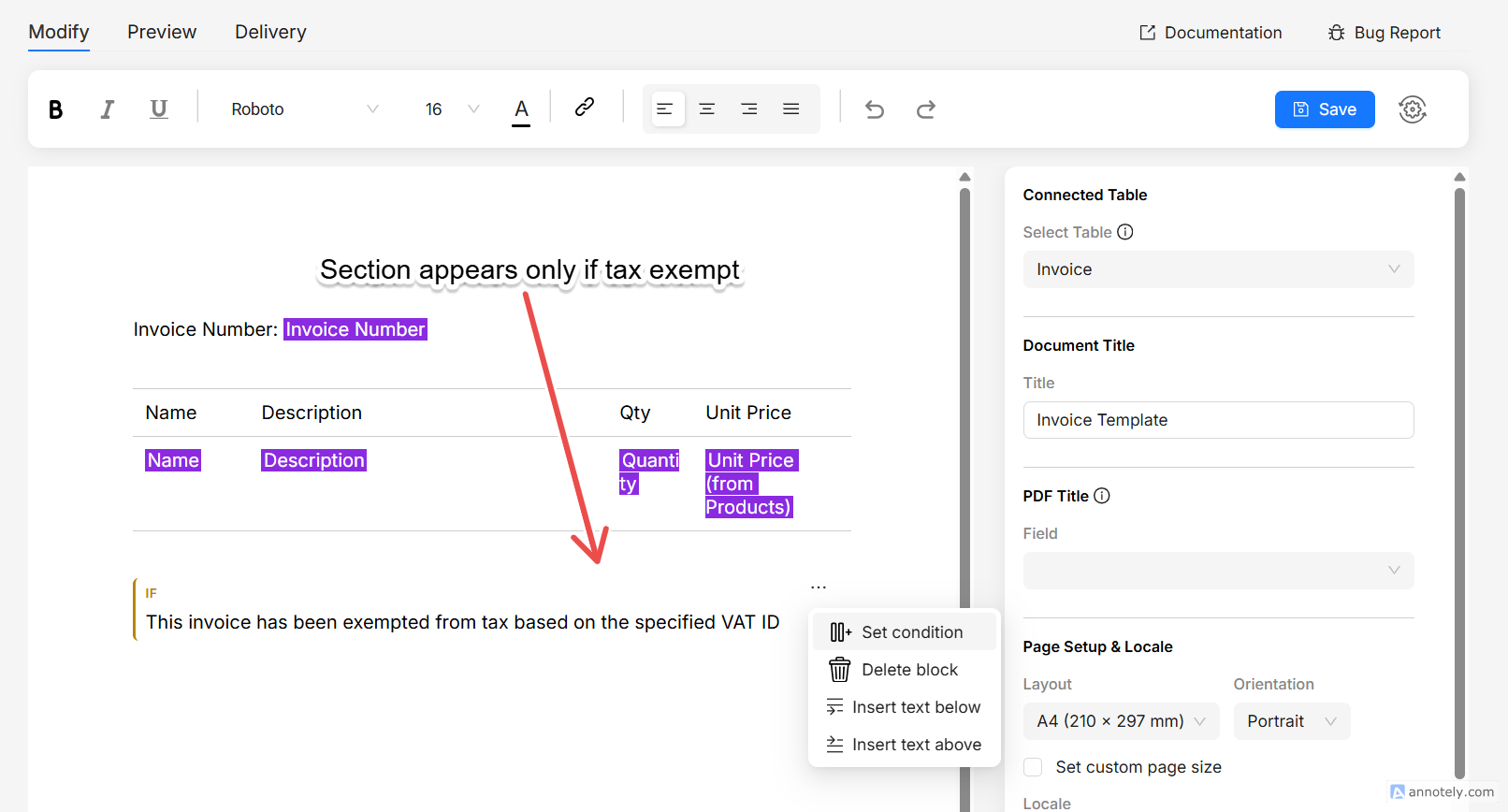
A conditional section shows or hides a whole block of content based on a condition. When the condition is met, the section appears in the document; otherwise the entire section is left out.
- Type
/in the editor and choose Conditional Block. An empty section is inserted. - Type or add any content inside it, just like the rest of the document.
- Hover over the section, click the ⋯ (more) icon, and choose Set condition.
- Build your condition and click Apply Condition.
The same ⋯ menu also lets you insert a line above or below the section, or delete it.
Need an either / or result — for example "Paid" when a checkbox is ticked and "Balance due" when it isn't? Add two conditional sections with opposite conditions: one uses Is Checked and the other Is Unchecked.
Hide a table column
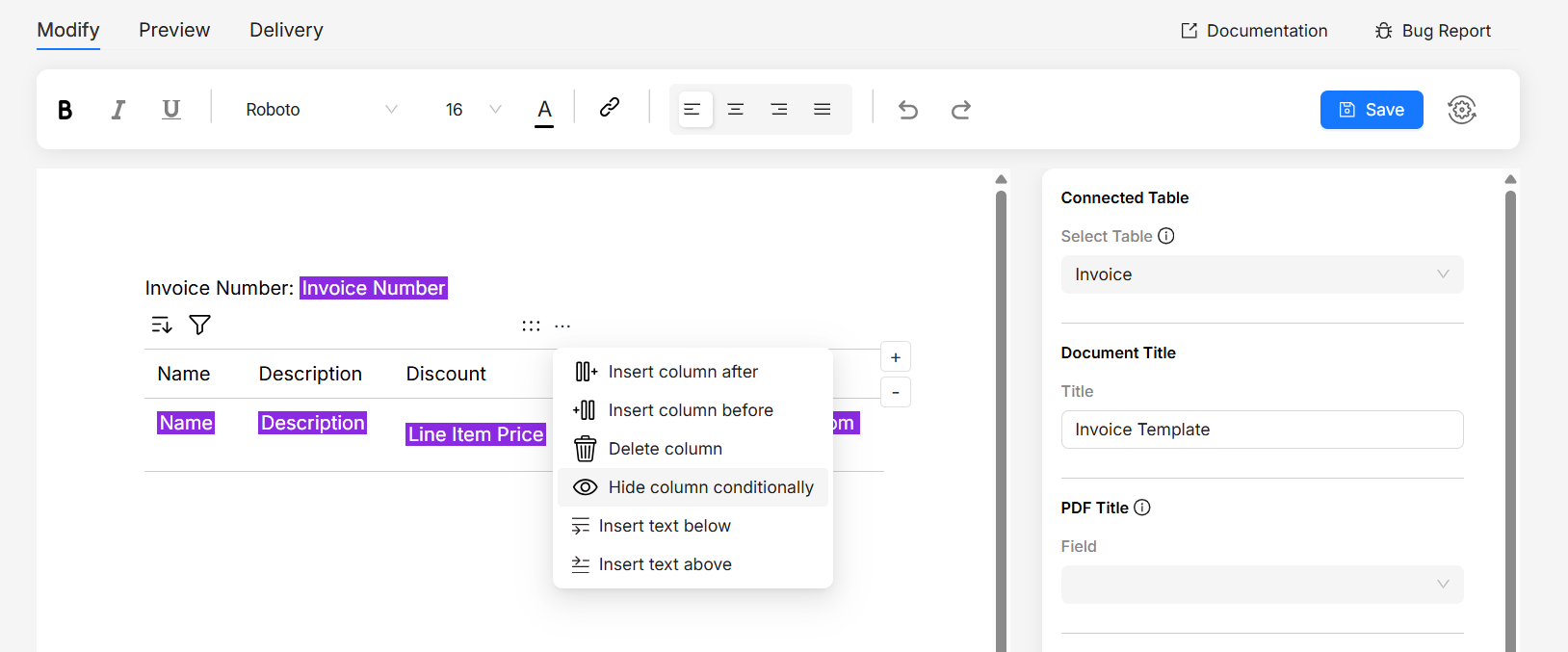
In a dynamic table, you can hide an entire column based on a condition — for example, hide a "Discount" column when no discount applies.
- Hover over the column and click its ⋯ (more) icon.
- Choose Hide column conditionally.
- Build your condition and click Apply Condition.
When the condition is met, the column is removed from the generated document. See the Line items guide for more on dynamic tables.