Looper
A Looper repeats a block of content once for every record. It works like a Dynamic Table, but it is far more customizable. A Dynamic Table can only produce rows inside a table. A Looper can repeat any layout you build, such as a titled section, a card, or an image with text beside it.
Because of this, a Looper can do things a Dynamic Table cannot:
- Repeat a custom layout. Design a block the way you want it to look, and it repeats for every record.
- Nest multiple levels. Place a Looper inside another Looper to walk through linked data, such as each client and then each invoice under that client.
- Add conditional logic. Show a block on some iterations only, such as the first record or every second record, or drop a conditional section inside the loop.
A good example is a project report, where each project appears as its own card with a heading, a status line, and a short description.
You can find the video tutorial here.
Create a loop
- Type
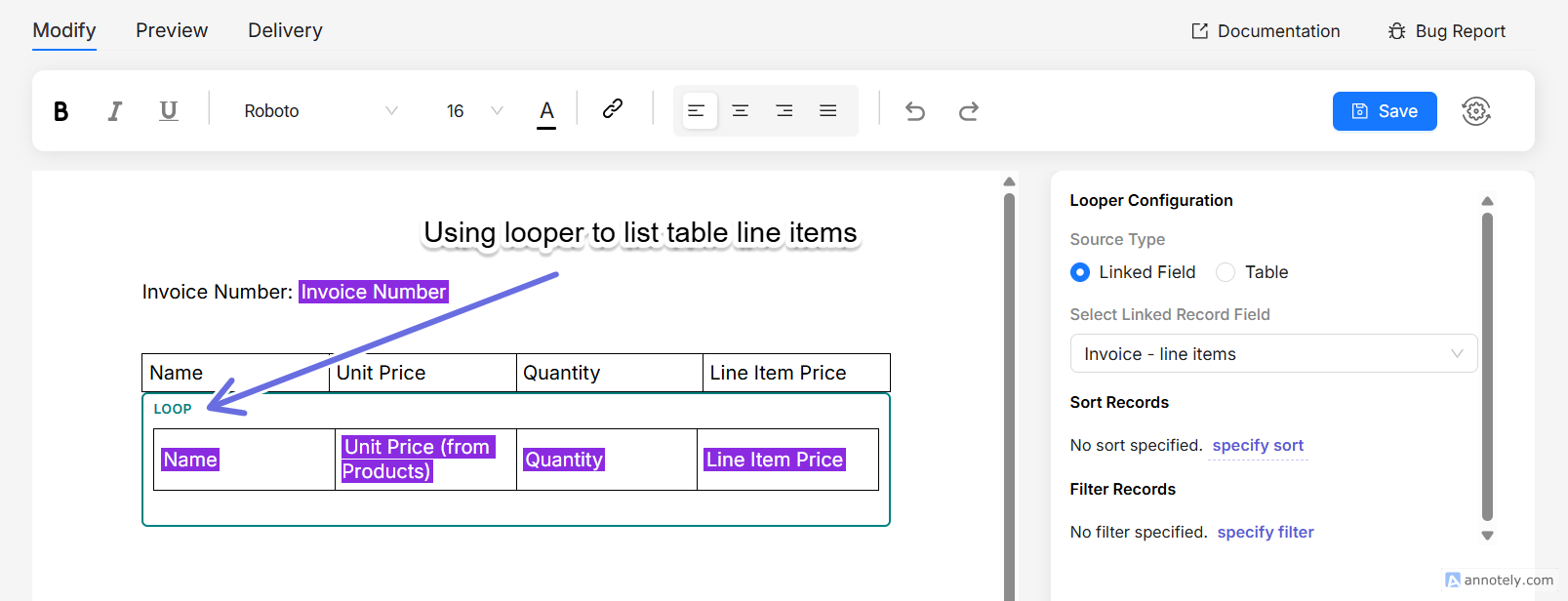
/in the editor and choose Looper. - Open the Properties panel on the right and choose what to loop over:
- Linked Field: loop over the records in a linked record field.
- Table: loop over the records of a table.
- Add any content inside the loop. Type
@to insert fields from the current record of the loop.
Turn on preview to see the block repeat, once for every record.
Sort and filter records
You can control which records appear in the loop, and in what order.
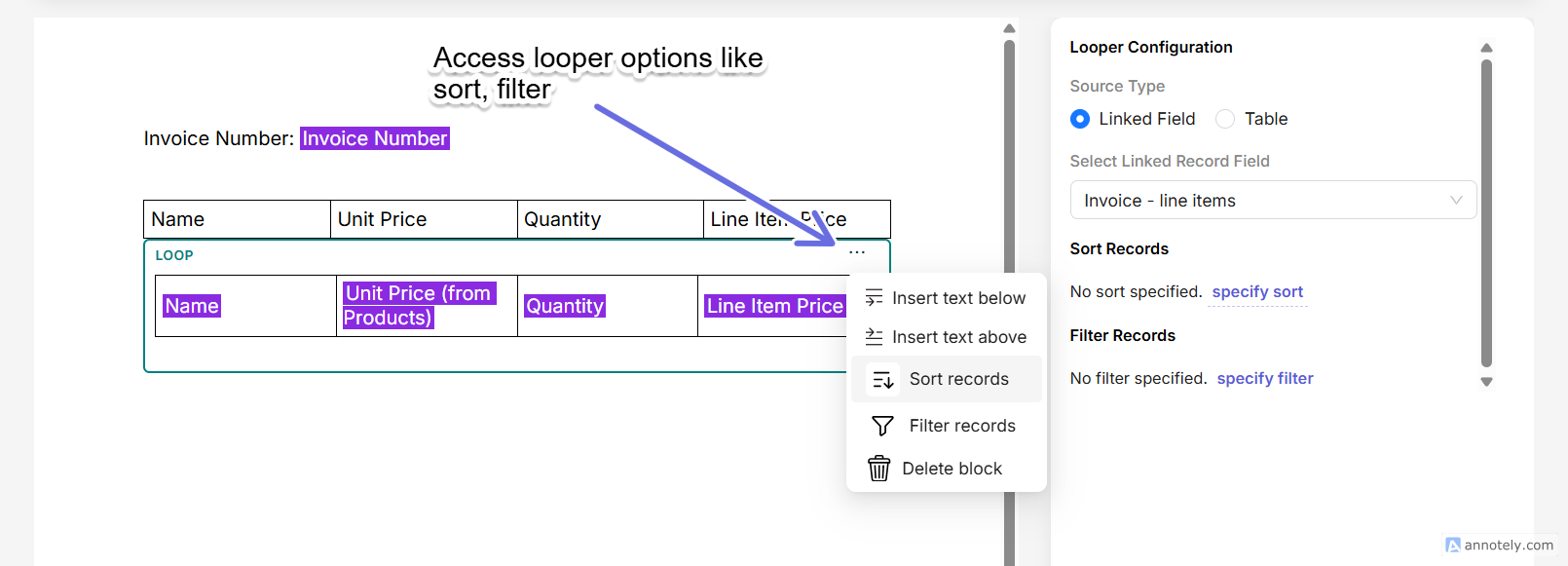
- Hover over the loop and click the ⋯ (more) icon (or you can find sort/filter options in the Properties panel).
- Choose Sort records to order the records by one or more fields, ascending or descending.
- Choose Filter records to keep only the records that match a condition. Use AND or OR logic to combine several checks.
Show a block only on some iterations
Inside a loop, you can show a block on certain iterations only, such as the first record, the last record, or every second record. This is useful for repeating layouts, for example shading every other card, or adding a heading before the first item.
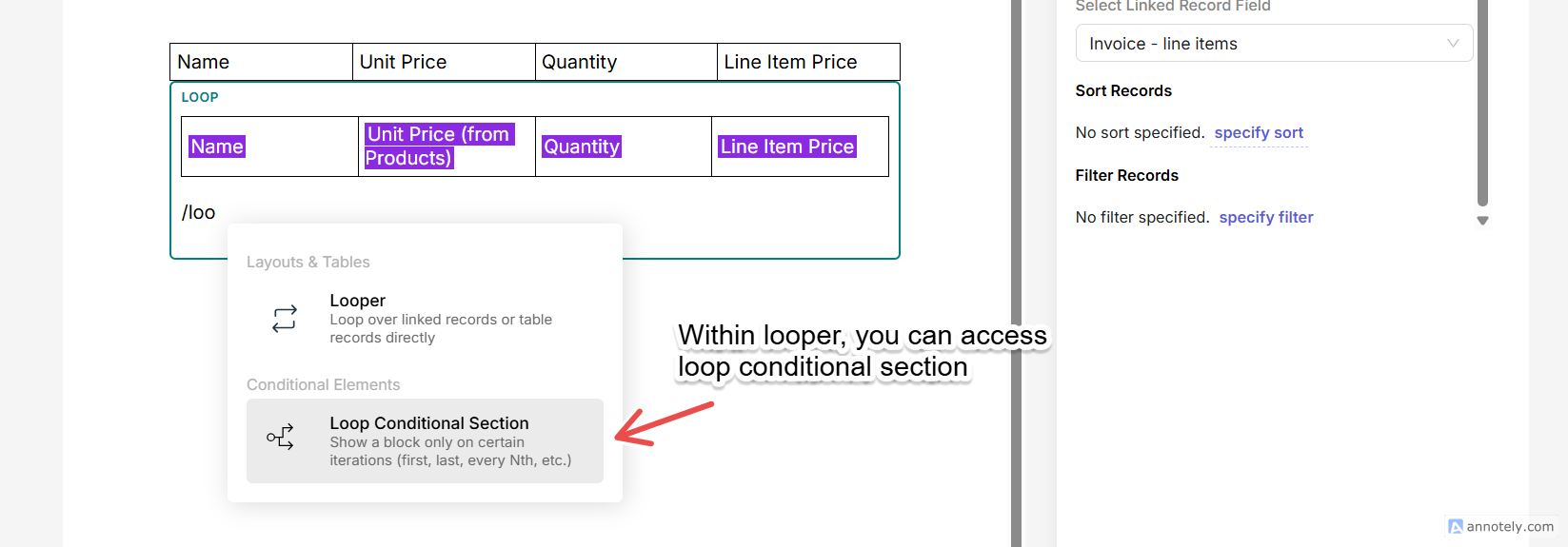
- Click inside a Looper and type
/. Choose Loop Conditional Section. It appears in the list only when you are inside a loop. - Add the content that should appear on the matching iterations.
- Hover the block, click the ⋯ icon, and choose Set condition.
- Pick a position rule and click Apply Condition.
The available position rules are:
| Rule | Shows the block when… |
|---|---|
| Is first / Is not first | the current record is (or isn't) the first |
| Is last / Is not last | the current record is (or isn't) the last |
| Index is even / Index is odd | the record's index is even or odd |
| Index equals / greater than / less than | the record's index matches the number you enter |
| Every Nth iteration | the record falls on every Nth position |
Nested loops
Place a Looper inside another Looper to work through data that has more than one level.
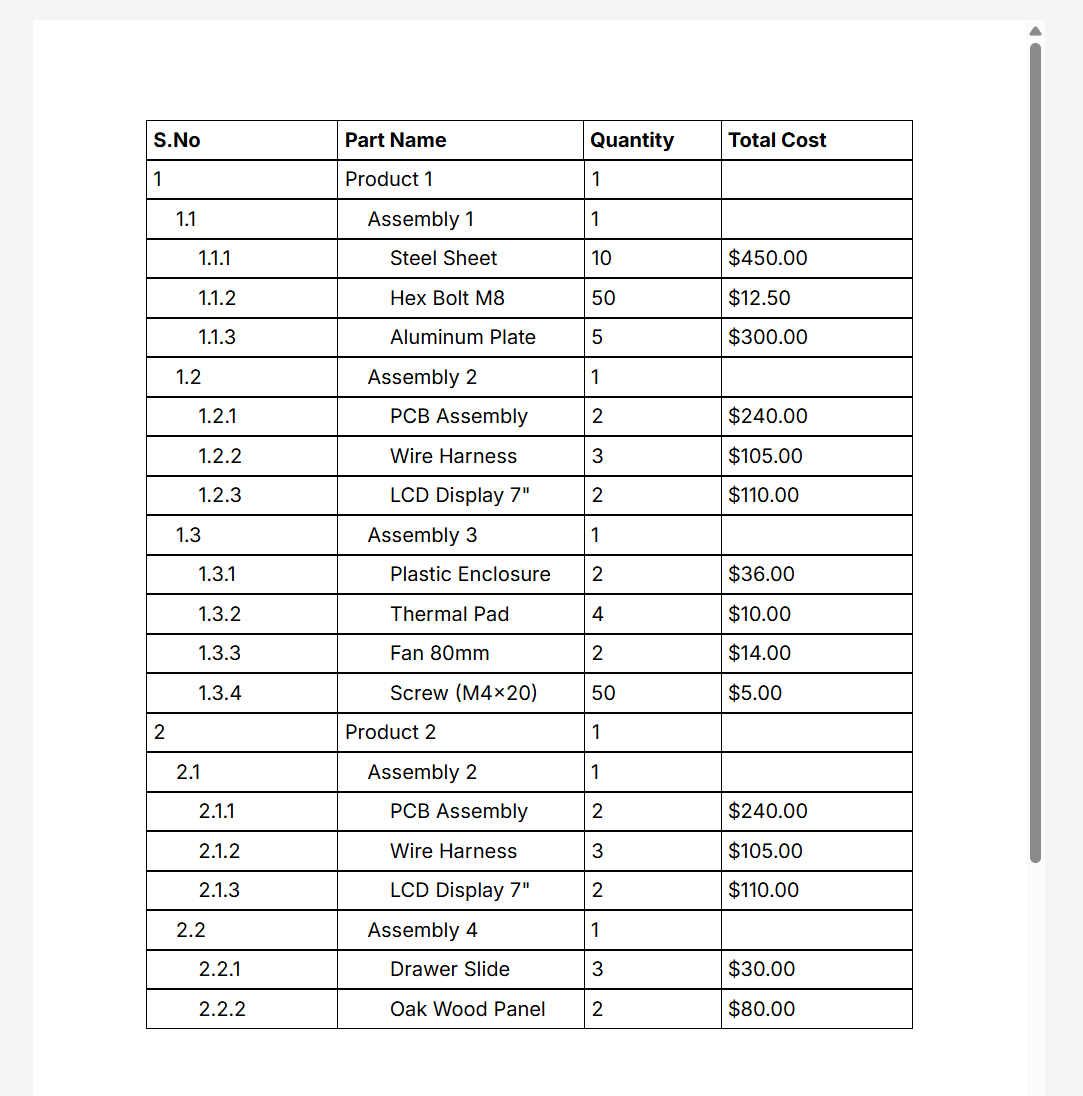
Below is an example of a 3-level nested looper (with counter nodes) for a Bill of Materials report. You can find the tutorial here.
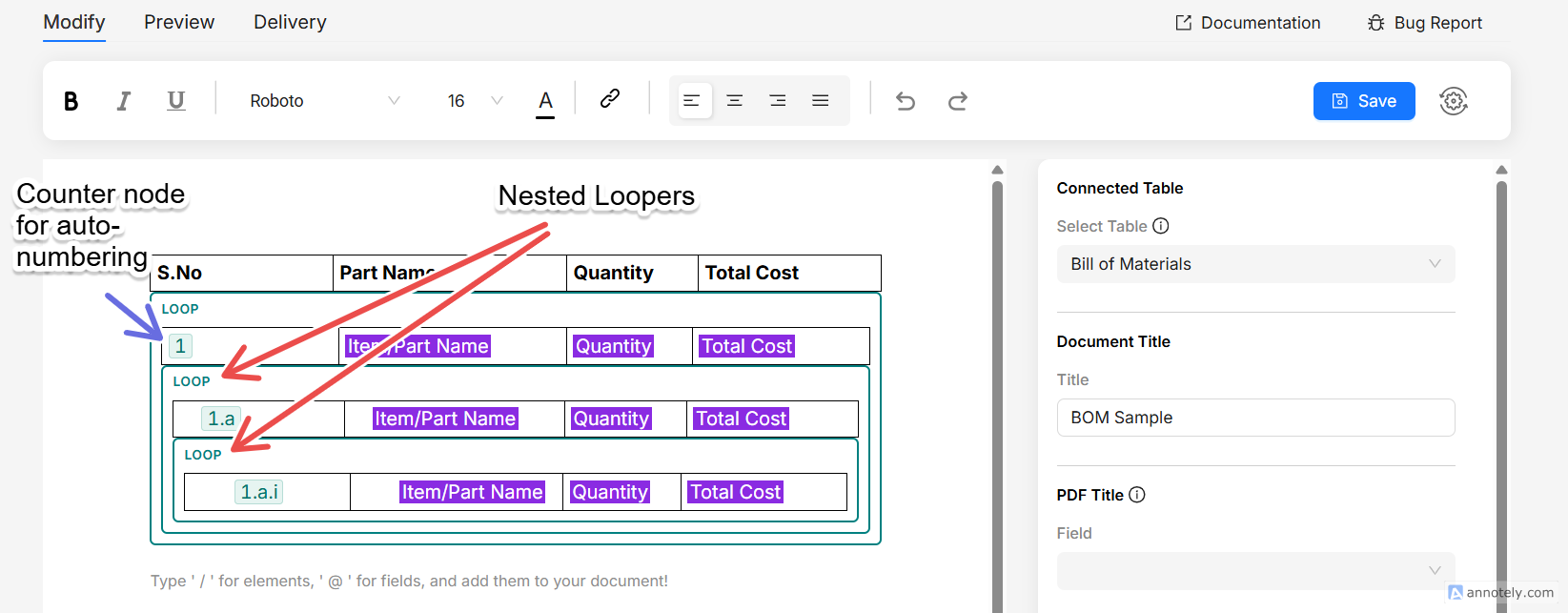
And it's preview in the editor is shown below. Note that for nested levels, indentation is different and auto numbering with counter is also shown in nested form.